Getting around the app
What this page covers
This page is a quick map of the app's main surfaces, so you know where everything lives. It starts with the dashboard, then the three controls you will use most, and finishes with how to move around the rest of the app.
Dashboard
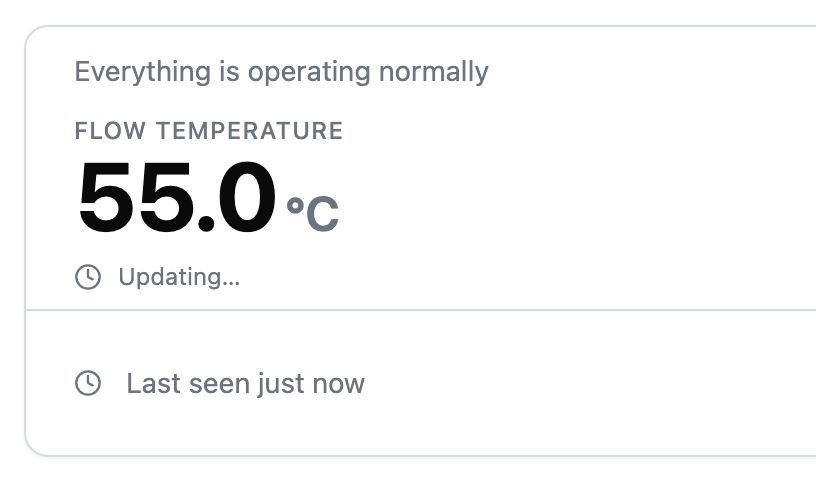
The dashboard is the first screen you see after signing in. It is built around the hero card, which has three parts:
- The reading. Shows the current water temperature and a one-line status.
- The up-next row. Tells you what your device plans to do next, such as the next heating window or the time remaining on a boost.
- The footer. Shows when your device last reported in and which goal is currently active.
For a detailed guide to each part, see Dashboard.
Key features at a glance
These are the three controls you will use most, each covered in depth by its own article.
Goals
Goals tell your device how to balance cost and comfort. Pick Savings, Balanced, Comfort, or Schedule, and your device plans its heating around that choice. For full details, see Goals.
Schedules
Schedules heat your water at times you choose. Create one or more time windows, turn the schedule on, and select the Schedule goal. For full details, see Schedules.
The action buttons
Boost and Away are the two action buttons that override your normal plan. Boost heats your water immediately, and Away pauses heating while you are out. For full details, see Boost and Away.
Status strip
The status strip runs across the top of the dashboard. It shows whether your device is online or offline. When offline, the readings shown are the last known values. It also reflects boost and away when either is active.
Goal pill
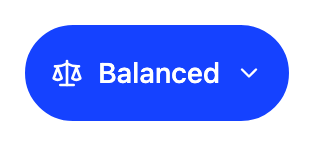
The goal pill sits in the footer of the hero card. It shows the goal your device is following: Savings, Balanced, Comfort, or Schedule.
Tap the pill to open the goal selector and change your choice. While a boost or away is running, the pill shows that instead and opens its controls. For full details, see Goals.
Carousel
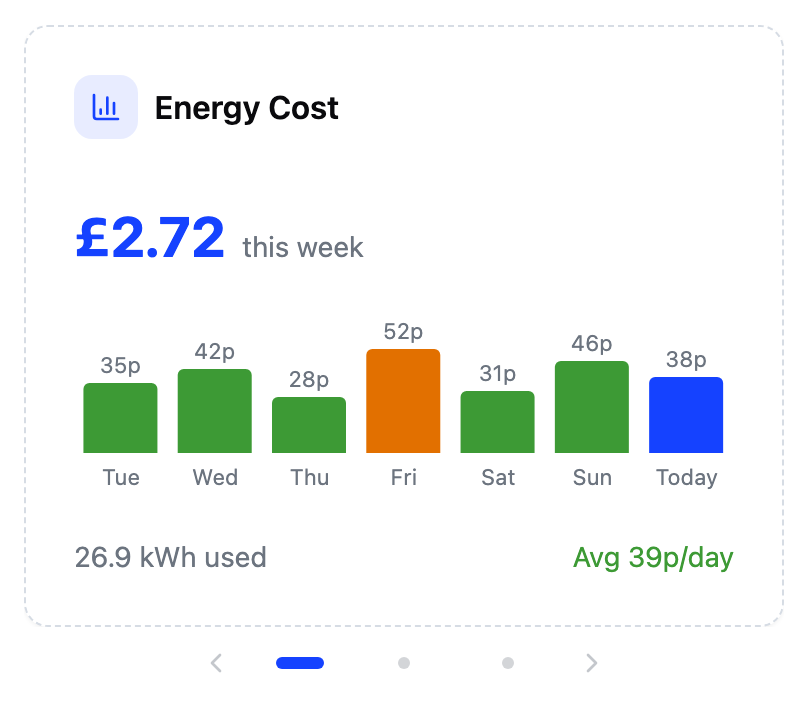
The carousel is a swipeable row of cards on the dashboard, under the hero card. It holds:
- Energy cost. Shows what heating your water has cost this week.
- Activity. Shows your device's power and temperature over time.
- Live readings. Shows current readings, when your device supports them.
- Upgrade. Free-tier accounts may also see an upgrade card.
Swipe left or right to move between the cards, or tap the dot indicators. For more on the cost card, see Energy cost.
Navigation

On small screens, a bottom navigation bar, shown above, provides access to the main areas of the app:
- Dashboard. The home icon returns you to the main reading.
- Activity. Shows your device's power and temperature over time.
- Schedules. Appears only when the Schedule goal is active, and gives quick access to your heating windows.
- More. Opens a menu with Settings, Help and FAQ, your plan, tariff, account, and legal documents.
On larger screens, these destinations appear in a sidebar instead.
More menu
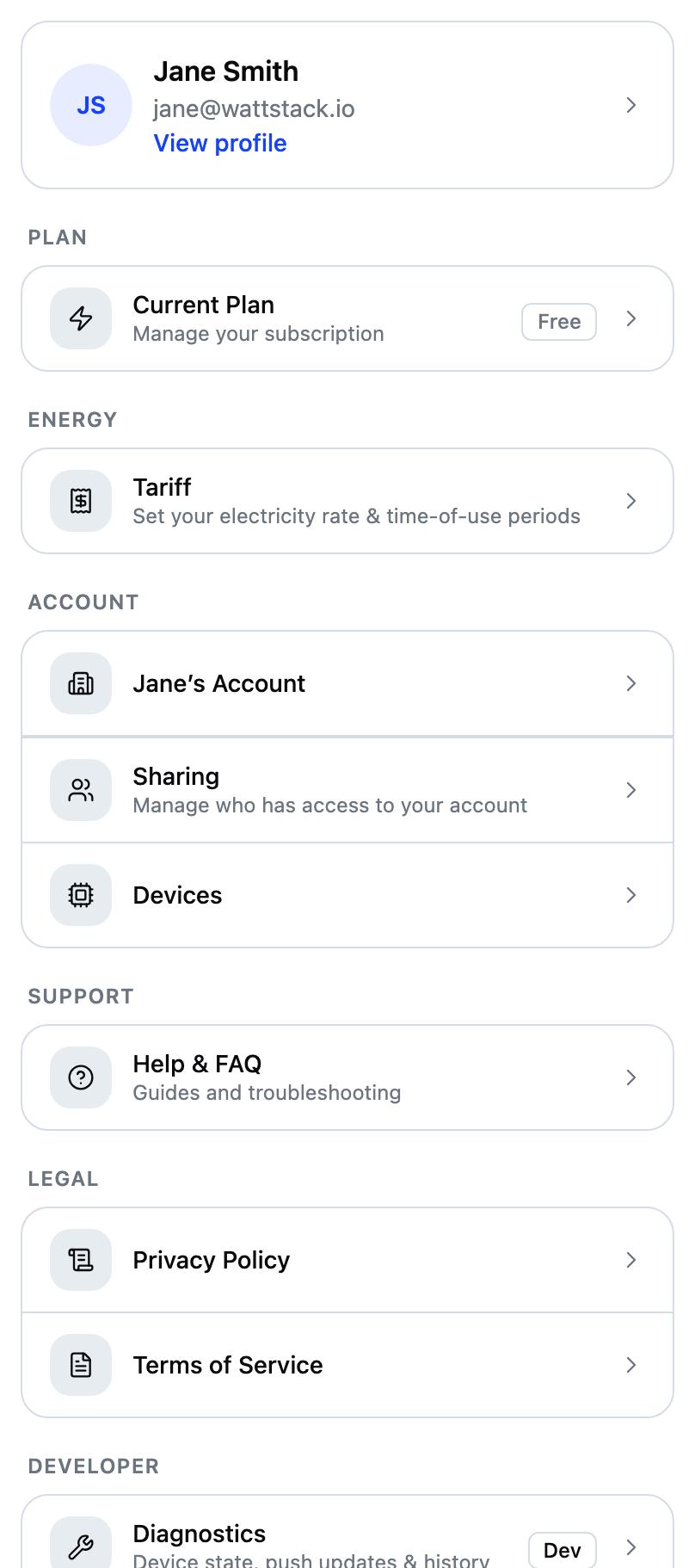
Open More from the bottom navigation bar or the sidebar, then tap any row to go straight to that section. From here you can:
- Manage your plan and subscription.
- Set up your energy tariff.
- View and manage your account and shared access.
- Open Help and FAQ.
- Read the privacy policy and terms of service.
- Access developer tools, if your account has that permission.