Schedules
What schedules do
Schedules let you set time windows when your device heats, so hot water is ready when you need it. You can find Schedules from the Schedules tab in the bottom navigation bar (visible when the Schedule goal is active) or from More.
Creating a schedule
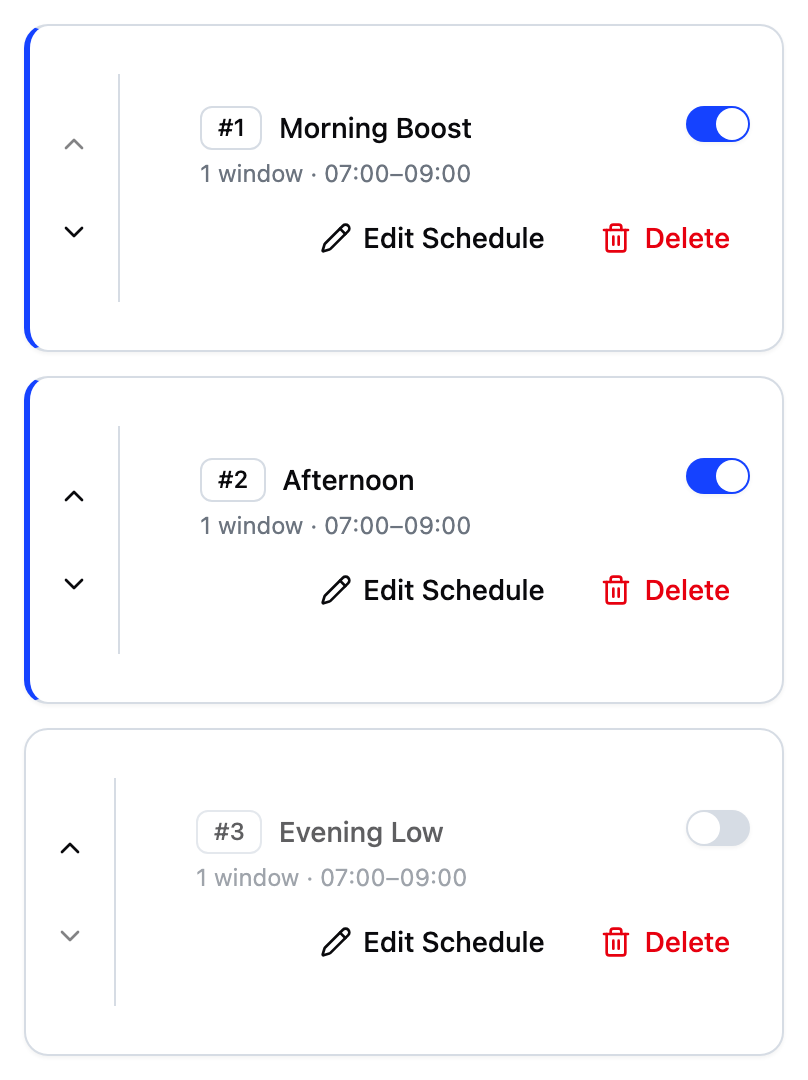
A schedule is a named set of time windows when your device heats. Give it a name and add one or more windows. The screenshot above shows a saved schedule list.
The editor applies these rules:
- Each window has a start and end time in 30-minute steps.
- A schedule holds up to 48 windows.
- Windows can cross midnight, such as 23:00 to 02:00.
- Two windows on the same day must not overlap. A window that ends exactly when the next starts is fine.
- Names must be unique per device and no longer than 100 characters.
The daily cost estimate
The editor estimates the daily running cost from your tariff rates and window hours. It shows a dash until you set up a tariff.
The estimate assumes a typical heating power and does not account for your device's actual state of charge, so treat it as a guide, not an exact figure.
Running your schedule
A schedule runs only when both of these are true:
- The schedule's switch is on.
- The Schedule goal is active.
When you save your first schedule, the app switches the Schedule goal on for you. The dashboard's up-next row then shows your next heating window.
Multiple schedules and priority
Premium plans support more than one schedule, with per-day windows so a weekend schedule can differ from a weekday one.
Schedules run in priority order from the top of the list. When two schedules overlap, the higher one wins. Use the arrows to reorder them.
Frequently asked questions
Why is the cost estimate a dash?
Cost estimates need a tariff. Set one up first. The estimate also shows a dash while you are still editing and a window has an incomplete time range.
Why can I not delete or disable my last schedule?
While the Schedule goal is active, at least one schedule must stay active. Switch to an automatic goal such as Balanced first, then delete or disable the schedule.
Do two windows at the same time on different days clash?
No. Windows only conflict when they overlap on the same day. On free plans every window runs every day, so any time overlap is a clash.
What happens between schedule windows?
Your device follows its default behaviour, which you can adjust from the schedules screen. This controls what the device does between windows.