Tariff setup
What tariff setup does
Tariff setup tells the app what you pay for electricity, so it can calculate real running costs and shift your heating into cheaper periods automatically. You find it in the app under More, then Tariff.
Why your tariff matters
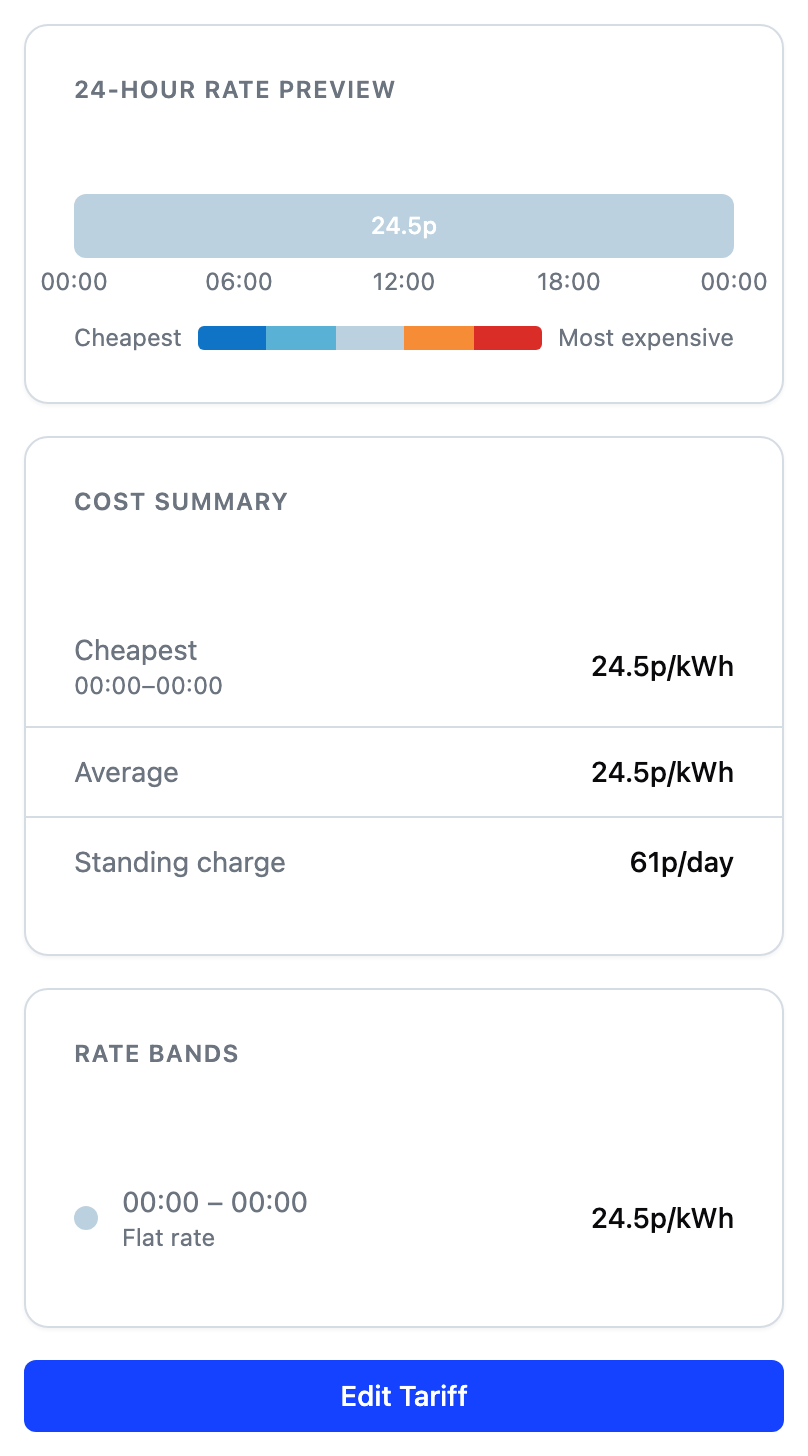
Your tariff is the price plan you have with your energy provider. It has two parts: a unit rate, which is the price per kilowatt hour (kWh), and a standing charge, which is a fixed daily fee. Some tariffs charge one rate all day. Others, called time-of-use tariffs, charge different rates at different times, such as a cheaper rate overnight.
The app uses your tariff for two things:
- Real costs. It calculates what running your device actually costs, so the figures across the app reflect your real prices.
- Cheaper heating. When your goal allows it, the app shifts heating into the cheaper parts of the day. This is where most of the savings come from.
You can find your tariff details on your electricity bill, in your energy provider's app, or by asking their support team. You need the unit rate for each time period and the daily standing charge.
If your tariff has cheaper periods, or you can switch to one that does, a time-of-use or dynamic tariff usually pays off well with a smart device. The app heats when prices are low without you having to think about it, so the bigger the gap between cheap and peak hours, the more it can save. The tariff screen, shown above, summarises your current rates across the day.
Setting up rate bands
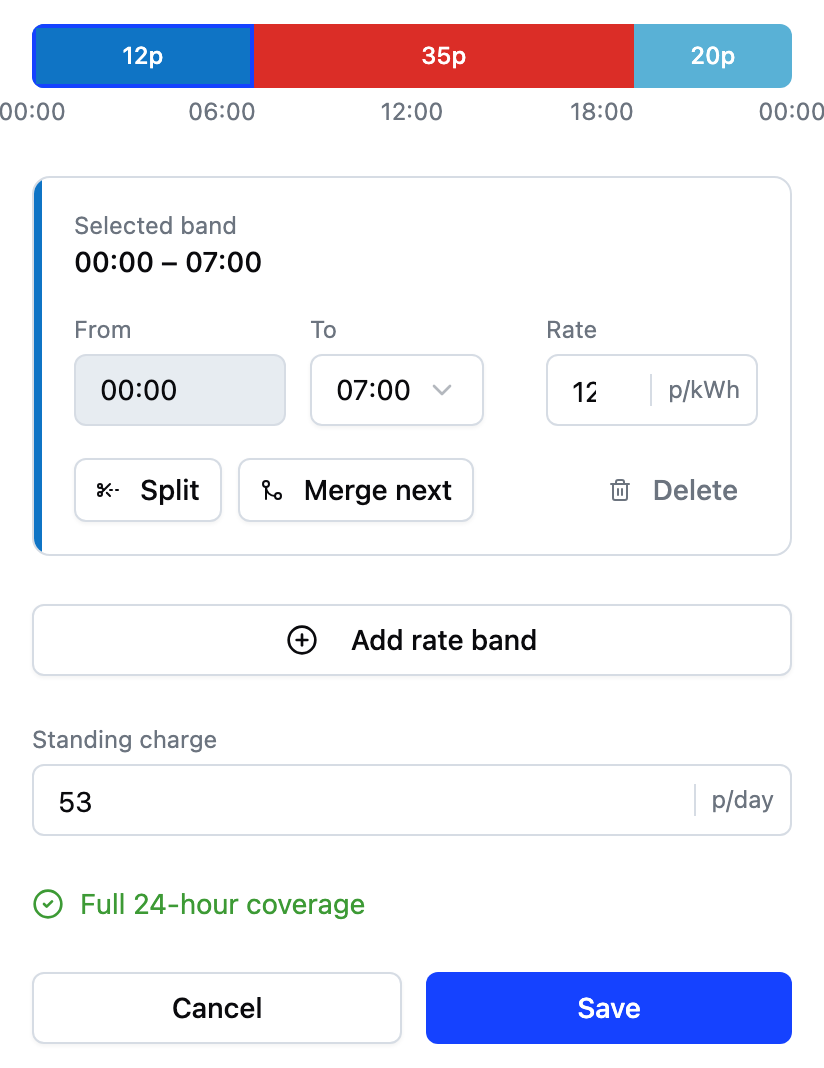
You enter your tariff as rate bands. A band is a stretch of the day with one price. The 24-hour timeline shows every band. Tap a band to select it, then edit its times and rate below.
- A flat rate tariff needs just one band covering the whole day.
- A time-of-use tariff needs a band for each price period, with no fixed limit.
- Band times are set in 30-minute steps.
For example, a typical two-rate tariff is one band from 00:00 to 07:00 at the cheap overnight rate, and a second band from 07:00 to midnight at the day rate.
Bands always join end to end, with no gaps and no overlaps, because every minute of the day needs a price:
- Changing one band's end time moves the next band's start time to match.
- The final band always runs to midnight.
- Split a band to add a price change.
- Merge a band into its neighbour to remove one.
Entering rates
Each band needs a unit rate: the price per kWh for that time of day. Copy each rate from your bill or your provider's app. Zero is valid, for example for a free overnight period.
The editor will not save until every band has a rate and the full 24 hours are covered. The indicator at the bottom tells you what is missing.
The standing charge
The standing charge is the fixed daily amount your supplier bills regardless of use. Enter it from your bill. A negative value is allowed, which suits some export tariffs.
What saving your tariff does
Saving applies the new rates from today. The app then uses them everywhere costs appear:
- The weekly energy cost card.
- Boost cost estimates.
- Schedule cost estimates.
If the tariff was changed on another device while you were editing, the app tells you and reloads the latest version so you can re-apply your change.
Frequently asked questions
Why can I not create a gap between bands?
Every minute of the day needs a price for costs to be calculated, so the editor keeps bands joined. To remove a band, delete it and its neighbour absorbs the time.
Why is the last band's end time fixed at 00:00?
The last band always runs to midnight so the day is fully covered. To change the evening boundary, adjust the previous band's end time instead.
My tariff has many price changes a day. What do I do?
The editor has no fixed band limit. Add a band for each price change your tariff has. For half-hourly tariffs, a card suggests connecting your provider so the prices stay up to date automatically.
Do I need to add a tariff at all?
Your water heating still works without one. Without a tariff, your costs cannot be shown and the Savings and Balanced goals have no price signal to plan with. Setting up your tariff unlocks both.